The Quality Control options under this category let you choose which types of collisions between subtitles and on-screen text should be flagged during QC. They help identify the subtitles that may obscure existing text, either by occupying the same screen region, overlapping its vertical position, or directly covering the detected text area.
Note: Adding Video Mask excludes a specific region from collision detection. This is useful for areas containing burnt-in text that is consistently flagged as a source of collisions, such as running timecode, burnt-in subtitles, or logos. These elements may be omitted from the final, production-ready video or may otherwise be irrelevant to subtitle placement. On-screen text within a masked area will not be considered a source of collisions during QC.
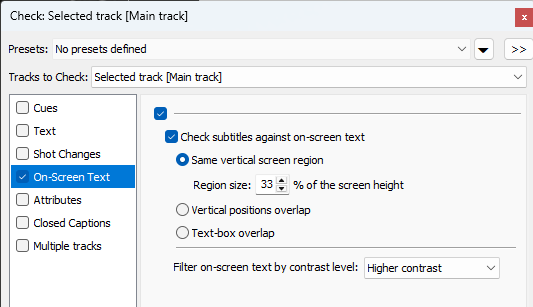
Same vertical screen region |
Divides the picture into regions based on the specified region size. The number of regions is calculated as 100% divided by the selected size. A warning is raised when a subtitle appears in a region containing on-screen text. |
Vertical positions overlap |
Raises a warning when a subtitle's vertical position overlaps the area occupied by on-screen text. |
Text-box overlap |
Raises a warning when a subtitle's text box intersects the detected text box of on-screen text. |
Filter by contrast level |
Adjusts the contrast level of detected on-screen text to help filter out false positives. Higher contrast is the default and sharpest/precise preset. |